

5 Midjourney Tricks to Avoid Ugly Art: Master negative prompts, lighting, and parameters to instantly level up your AI images.
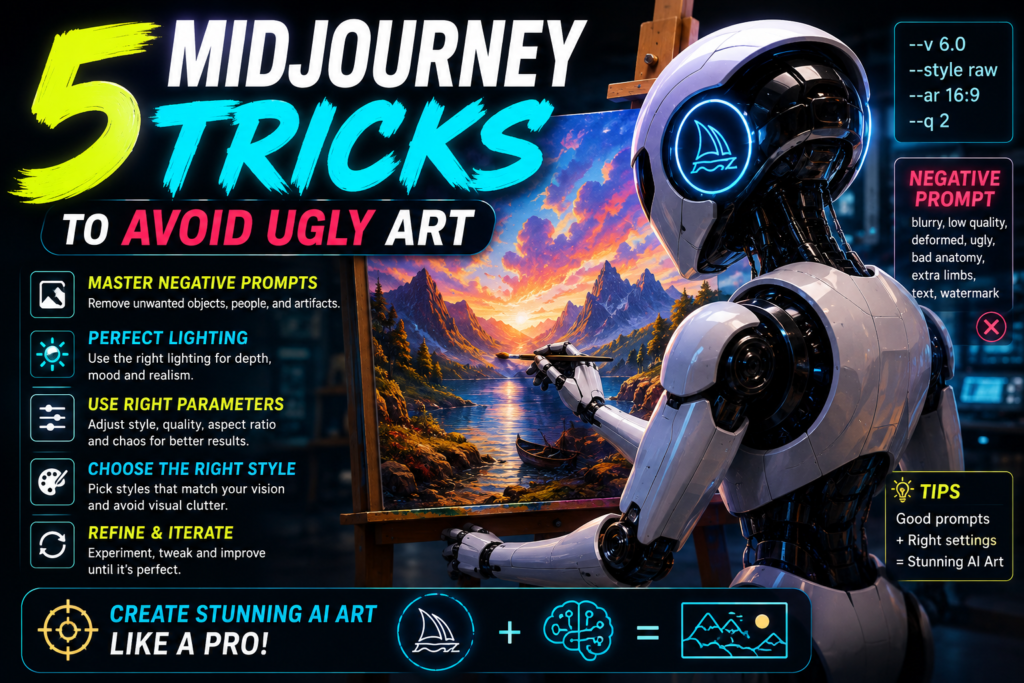
5 Midjourney Tricks to Avoid Ugly Art: The Ultimate Masterclass
Creating artwork with Midjourney can feel like magic, but every prompt engineer eventually runs into the dread of “ugly art”—distorted faces, extra limbs, muddy lighting, cluttered compositions, and generic “AI-generated” aesthetics.
To turn unpredictable outputs into stunning, professional-grade imagery, you need precise control over prompt structure, parameters, weights, and rendering references. Below is a comprehensive guide covering five essential tricks to completely eliminate bad outputs and refine your AI artwork.
1. Master Negative Prompting and Weight Management
One of the quickest ways AI image generation fails is when Midjourney tries to over-explain details or defaults to typical AI tropes (like overly glossy skin, unnecessary glowing particles, or distorted anatomy). Learning how to strip away what you don’t want is just as critical as describing what you do want.
Understanding the --no Parameter
The --no parameter acts as a negative prompt in Midjourney. Whatever you list after --no tells the model to steer clear of those concepts during the diffusion process.
- Fixing Distorted Anatomy:
--no extra limbs, deformed hands, extra fingers, distorted faces - Removing Unwanted Text/Watermarks:
--no text, watermark, signature, logo - Eliminating Cluttered Backgrounds:
--no clutter, busy background, extra objects - Avoiding Overly Digital Render Looks:
--no 3d render, plastic, glossy, CGI
Fine-Tuning Focus with Multi-Prompt Weights (::)
Instead of relying solely on generic descriptive words, use multi-prompting with weights to give specific elements higher or lower priority.
When you separate concepts with ::, Midjourney treats them as independent tokens:
cinematic portrait of a astronaut::2 realistic lighting::1 blur background::-0.5
How Multi-Prompt Weighting Works:
- Positive Weights (
::1to::5): Increases the prominence of key subjects or artistic styles. - Negative Weights (
::-0.5to::-2): Actively suppresses elements without needing full descriptive phrases.
2. Ditch Buzzwords and Use Precise Lighting & Camera Terminology
Adding generic buzzwords like “hyperrealistic,” “photorealistic,” “4K,” “8K,” or “trending on ArtStation” no longer improves output in modern Midjourney models (v5 and v6). In fact, these terms often pollute your prompt and lead to unnatural, over-processed results.
Replace Buzzwords with Photographic Primitives
Instead of asking for “realism,” describe the camera settings, lighting gear, and film stock that produce genuine photographic quality.
Lighting Setup Examples for Clean Renders
Atmospheric & Natural Lighting
- Golden Hour / Blue Hour: soft glow, warm tones, long shadows, soft contrast.
- Volumetric Fog: rays of light, light shafts, cinematic haze, depth.
- Diffused Window Light: realistic skin texture, soft shadows, directional clarity.
Studio & Dramatic Lighting
- Rim Lighting / Kickers: clear separation from the background, subtle edge Highlights.
- Chiaroscuro / Rembrandt Lighting: high contrast, deep shadows, dramatic mood.
- Cinematic Neon / Cyberpunk Tone: dual-tone rim light, saturated specular reflections.
Lens and Camera Control
| Goal | Camera / Lens Terms to Include |
| Portraits & Subject Isolation | 85mm f/1.4 lens, shallow depth of field, bokeh background, shot on Hasselblad |
| Architectural & Environmental | 24mm wide-angle lens, architectural photography, deep depth of field |
| Action & Motion | 1/2000s shutter speed, action shot, crisp freeze frame |
| Documentary & Film Look | 35mm film stock, Kodak Portra 400, natural film grain |
3. Leverage --style raw and Fine-Tune Stylization (--s)
Midjourney defaults to applying its own built-in artistic opinion to every prompt. While this makes simple prompts look pleasing, it often leads to over-stylized, repetitive, and unnaturally smooth “AI-looking” renders.
When to Use --style raw
Adding --style raw turns down Midjourney’s default aesthetic opinion, forcing the generator to stick strictly to your text instructions rather than imposing a default “shiny” art style.
- Standard Default Prompt:
a portrait of a rugged mechanic in a garage(Renders an idealized, movie-poster style mechanic). - Raw Prompt:
a portrait of a rugged mechanic in a garage --style raw(Renders a authentic, unglamorized photographic capture).
Controlling the Stylize Parameter (--s or --stylize)
The stylize value dictates how heavily Midjourney applies its artistic training:
- Low Stylize (
--s 50to--s 150): Best for strict prompt accuracy, clean commercial photography, and technical illustrations. - Default Stylize (
--s 100): Balanced aesthetic embellishment. - High Stylize (
--s 250to--s 750): Maximum artistic flare, creative composition, and vivid color schemes—though higher values risk ignoring details in complex prompts.
4. Master Image References: Style (--sref) and Character (--cref)
To eliminate random, ugly aesthetic shifts between generations, use explicit visual anchors. Midjourney allows you to import style and character consistency directly using image URLs and dedicated parameters.
Style Reference (--sref)
If you find an art style, color palette, or render technique you love, feed its image URL directly into your prompt using --sref.
- Basic Usage:
concept art of a fantasy castle --sref <IMAGE_URL> - Adjusting Style Weight (
--sw): Control how strongly the reference image influences your result (--sw 0to--sw 1000). Default is 100. - Combining Styles: You can supply multiple image URLs to blend distinct styles together seamlessly.
Character Reference (--cref)
Distorted character faces often happen when Midjourney tries to regenerate a person from scratch in every render. Use --cref to maintain subject identity across different prompts.
- Basic Usage:
a woman sitting in a cafe --cref <CHARACTER_URL> - Reference Weight (
--cw):--cw 100(Default): Copies face, hair, and clothing.--cw 0: Copies only the facial features, allowing you to change outfits and hairstyles effortlessly.
5. Harness Chaos (--c) and Variation Workflows for Clean Composition
Messy, unbalanced visual compositions make artwork look amateur. Rather than settling for the first four images Midjourney outputs, leverage iteration tools to dial in perfect framing.
Using Chaos (--c) to Explore Framing Options
The chaos parameter controls how different the four initial grid images are from one another (--c 0 to --c 100).
--c 0to--c 10(Default / Low): Produces four minor variations of the exact same visual concept. Great for fine-tuning.--c 20to--c 50(Medium to High): Forces Midjourney to explore completely different angles, lighting setups, and compositions in a single generation.
Framing with Precise Aspect Ratios (--ar)
Always define your aspect ratio early in the workflow. Forcing a square (1:1) image to be cropped later often destroys ideal visual hierarchy.
- Cinematic / Landscape:
--ar 16:9or--ar 21:9 - Social Media / Portrait:
--ar 4:5or--ar 9:16 - Classic Photography:
--ar 3:2or--ar 2:3
Inpainting and Region Editing (Vary Region)
If 90% of your image is perfect but a hand or face is distorted, do not re-roll the entire prompt.
- Upscale the image you like.
- Click Vary (Region) / Editor.
- Highlight only the ugly or distorted area.
- Modify the text prompt slightly if needed (e.g., specifying
clean realistic hands) and generate a localized fix.
Checklist: Prompt Template for Perfect Renders
To guarantee high success rates on every generation, structure your prompts using this proven layout:
Plaintext
[Main Subject] + [Environment & Action] + [Lighting & Atmosphere] + [Camera & Shot Specs] + [Parameters]
Example Working Prompt:
A portrait of an elderly watchmaker assembling a vintage pocket watch, detailed workbench with intricate gears, warm directional tungsten lamp light, cinematic depth of field, shot on 85mm lens, f/1.8 –style raw –s 150 –ar 16:9 –no 3d render, plastic skin, blur, watermark