
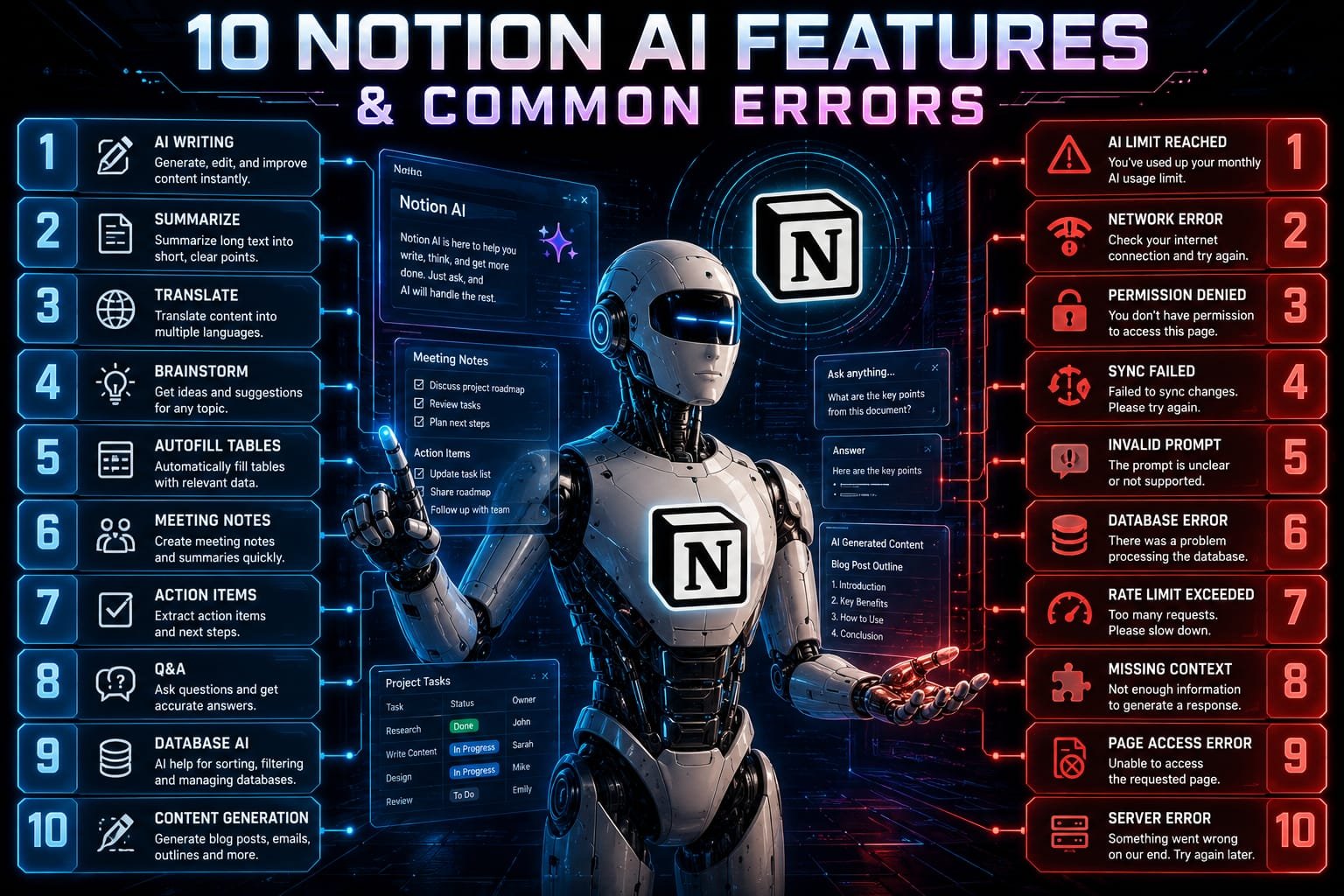

Discover 10 Notion AI Features & Common Errors to boost your productivity. Learn how to fix AI prompts, formatting issues, and workflow glitches easily.
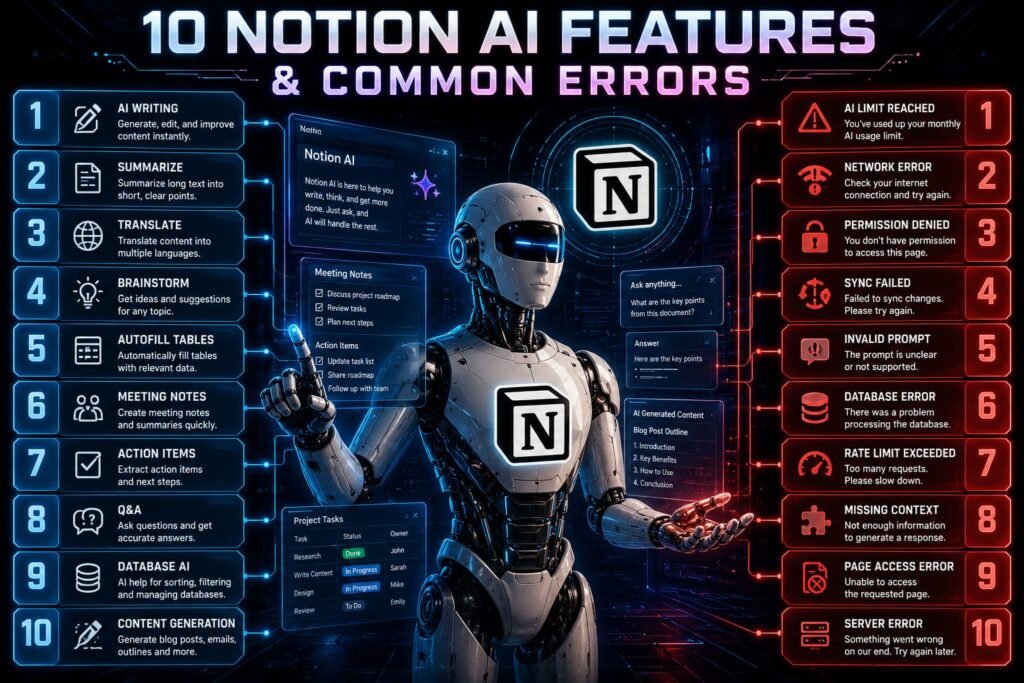
The Complete Guide to Notion AI: Features and Troubleshooting
In modern digital workflows, workspace management and artificial intelligence have converged to create unprecedented levels of efficiency. Notion has established itself as an all-in-one productivity hub, and its integrated artificial intelligence features take productivity to a whole new level. Whether you are drafting strategy documents, organizing databases, or summarizing meeting notes, understanding 10 Notion AI Features & Common Errors can dramatically improve how you and your team operate daily.
Part 1: Top 10 Notion AI Features Explored
Notion AI is designed directly into your workspace pages and databases so you don’t have to constantly jump between separate web browsers and third-party tools. Here are ten stand-out capabilities that make Notion AI an indispensable productivity partner.
1. Workspace-Wide Q&A and Enterprise Search
Instead of manually searching through dozens of nested sub-pages, folders, or connected external apps, you can query Notion AI directly. It scans your entire workspace to synthesize accurate answers based strictly on your internal team documents, meeting transcripts, and project specifications.
2. Autonomous Content Generation
When staring at a blank page, Notion AI serves as a powerful writing partner. By simply pressing Space or typing /ai, you can instruct the assistant to outline blog posts, draft email templates, write project briefs, or generate complete first drafts in seconds.
3. Automated Summarization and Extraction
Document length can often slow down decision-making. Notion AI allows users to select lengthy text blocks or entire pages and convert them into concise executive summaries, bulleted key takeaways, or quick actionable items.
4. AI Database Autofill (Autofill Properties)
Notion databases become far more dynamic when leveraging AI properties. You can set up database columns that automatically summarize candidate resumes, extract key tags from client feedback, translate short entries, or categorize incoming support requests as soon as new database rows are created.
5. Tone Adjustment and In-Line Editing
Refining existing text is effortless with Notion AI. You can highlight any paragraph and instruct the AI to rewrite it for different audiences—such as changing a casual draft into a professional executive summary, fixing grammar errors, or expanding brief notes into comprehensive prose.
6. Dynamic Language Translation
For distributed global teams, multi-language support is essential. Notion AI can instantly translate selected text blocks or full project specs into dozens of major world languages without breaking your page formatting or callout blocks.
7. Action Item Extraction from Meeting Notes
During brainstorming or sync sessions, keeping track of assignees and tasks can be challenging. Notion AI analyzes messy meeting transcripts and automatically builds structured lists of action items, assigning tasks to team members directly within the workspace.
8. Custom AI Agents and Instructions
Advanced users can set custom instructions or persona prompts for Notion AI. This capability ensures that generated responses consistently reflect your organization’s unique brand voice, formatting requirements, and structural rules across all documents.
9. Web Search and External Intelligence
When enabled, Notion AI can connect directly to real-time search capabilities. This allows you to perform research, collect market intelligence, check facts, and bring external context into your workspace without opening dozens of browser tabs.
10. AI Image Generation and Diagramming
For teams relying on visual communication, Notion AI offers image generation capabilities. Workspace members on supported plans can generate custom illustrations, visual notes, flowcharts, or simple diagrams directly on their pages using plain text descriptions.
Understanding these capabilities will help you maximize productivity, but mastering 10 Notion AI Features & Common Errors also requires knowing how to troubleshoot unexpected issues when they occur.
Part 2: Understanding Common Errors and How to Resolve Them
Even with seamless software integrations, users occasionally encounter technical glitches, usage caps, or permissions blocks. Staying familiar with 10 Notion AI Features & Common Errors ensures that minor technical issues won’t interrupt your team’s momentum.
Issue 1: “Rate Limit Reached, Please Try Again Later”
- Why it happens: Notion enforces request limits on both API interactions and heavy AI operations to protect server stability and prevent workspace abuse.
- The Fix: If you hit a rate limit error, pause heavy batch requests for a short period. Break down massive document generation tasks or multi-row database autofills into smaller chunks.
Issue 2: “Request Body Too Large” (HTTP 413)
- Why it happens: Attempting to paste or process an excessively large block of text (typically over 500 KB) in a single prompt can overload the payload processing limits.
- The Fix: Split your long-form text into smaller sections before running AI prompts. Prompting the AI on individual sections yields higher quality output and avoids payload limit failures.
Issue 3: Permissions and Access Errors
- Why it happens: If Notion AI reports that it cannot find specific internal documents or access certain databases, it is often due to page restriction settings. If a user does not have viewing permissions for a private page, the AI cannot pull context from it.
- The Fix: Check the “Share” menu on the target page. Ensure that the user requesting the information—and any relevant integration connectors—has proper access rights to the underlying workspace pages.
Issue 4: Image Generation Limits and Failures
- Why it happens: Image generation features carry specific rolling limits depending on your workspace plan. Exceeding these limits within a 24-hour window will trigger generation errors.
- The Fix: Wait for the rolling quota window to reset. Workspace administrators can also check workspace settings to ensure image creation options are properly enabled for all team roles.
Issue 5: Local Cache and Sync Discrepancies
- Why it happens: Browsers or desktop client applications can occasionally retain stale cached data, causing AI responses to freeze or fail to load.
- The Fix: Perform a hard refresh or clear your application cache. Logging out and logging back into your account, or resetting the Notion desktop app, frequently clears persistent client-side errors.
Part 3: Best Practices for Notion AI Success
To get the best performance while exploring 10 Notion AI Features & Common Errors, follow these straightforward workflow recommendations:
- Keep Context Specific: When asking questions or instructing the AI to generate content, provide specific detail regarding style, tone, constraints, and goal outputs.
- Structure Workspace Pages Clearly: Notion AI relies on clean document hierarchies and clear page titles to deliver accurate internal search answers.
- Monitor Plan Quotas: Stay aware of your team’s plan tier limits regarding custom integrations, AI usage responses, and workspace storage allowances.
- Regular Workspace Audits: Regularly review sharing settings to prevent permission conflicts from interfering with workspace search.
Summary Table: Quick Error Troubleshooting:10 Notion AI Features & Common Errors
| Error Message / Issue | Primary Cause | Recommended Fix |
| Rate Limit Reached | Too many simultaneous requests or heavy operations | Pause requests briefly and break large operations into smaller batches |
| Request Body Too Large | Input text block exceeds size threshold (500 KB) | Shorten text blocks or process documents section by section |
| Missing Search Context | Restricted page sharing or permission limits | Verify user and integration access permissions under page settings |
| Image Creation Failed | Exceeded rolling daily/monthly generation quota | Wait for quota reset or verify image features in workspace settings |
10 Notion AI Features & Common Errors
Final Thoughts:10 Notion AI Features & Common Errors
Artificial intelligence in Notion is a game-changer for digital productivity and team collaboration. By mastering 10 Notion AI Features & Common Errors, users can maximize efficiency, streamline internal search, create dynamic databases, and resolve technical issues smoothly. Taking full advantage of 10 Notion AI Features & Common Errors helps organizations maintain clean, organized, and high-performing digital workspaces. Whenever you encounter operational roadblocks, referencing 10 Notion AI Features & Common Errors will guide you back on track for seamless productivity.
10 Notion AI Features & Common Errors:10 Notion AI Features & Common Errors
If you’re troubleshooting access or permission glitches in Notion AI, How To Fix Notion AI Permissions Error Issue Full Guide provides a clear step-by-step walkthrough for configuring workspace access settings and clearing access blocks
One response to “10 Notion AI Features & Common Errors”
[…] 10 Notion AI Features & Common Errors […]