


Learn how to use 1 Easy Descript Hack to Fix Bad Audio in seconds. Clean up background noise and boost clarity for crisp, professional sound!
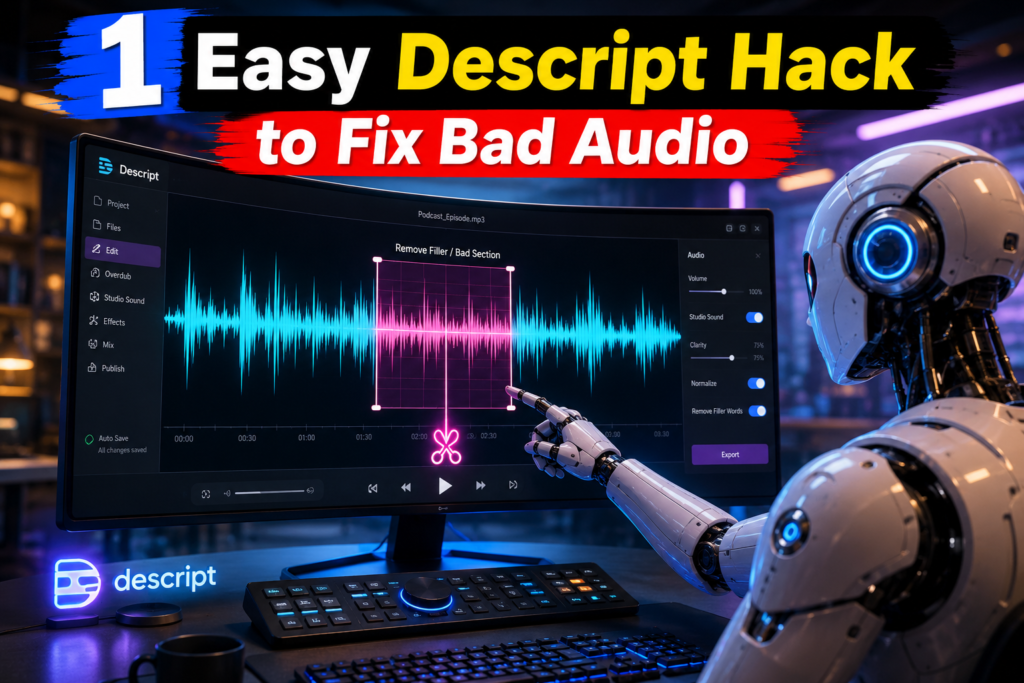
1 Easy Descript Hack to Fix Bad Audio
In content creation, video quality gets all the credit, but audio quality makes or breaks viewer retention. Poor background noise, echoing rooms, and low-volume microphones can immediately drive potential followers or customers away. Fortunately, fixing sound issues no longer requires thousands of dollars in studio gear or advanced sound engineering skills.
Using 1 Easy Descript Hack to Fix Bad Audio, you can instantly transform amateur recordings into polished, professional voice tracks. Descript’s artificial intelligence tools allow creators of any skill level to repair muffled recordings, eliminate background hums, and create studio-grade audio in just a single click.
1. What is the 1 Easy Descript Hack to Fix Bad Audio?
The primary secret behind this audio transformation is Descript’s AI-powered feature known as Studio Sound. This tool uses deep learning models to analyze your recorded speech, isolate your voice, and completely recreate the audio frequency response as if it were recorded in a professional soundproof booth.
Instead of manually tweaking complex equalizers, noise gates, or compressors, this 1 Easy Descript Hack to Fix Bad Audio automates the entire sound restoration process:
- Background Noise Removal: Eliminates persistent background sounds like computer fans, air conditioners, traffic, and room hums.
- Echo and Reverb Reduction: Smooths out harsh reflections caused by recording in untreated, hardwood, or tile-floored rooms.
- Frequency Enhancement: Boosts low-end warmth and high-end clarity to give voices a rich, radio-ready tone.
- Dynamic Leveling: Automatically balances loud peaks and quiet whispers for smooth, consistent volume.
2. Step-by-Step Guide: How to Apply the 1 Easy Descript Hack to Fix Bad Audio
Applying this feature inside Descript takes less than a minute. Follow these steps to clean up your media files:
- Import Your Media: Open Descript and drag your audio or video file into the project timeline to generate a transcript.
- Select the Audio Track: Click on the audio layer or clip you want to clean up in the editing canvas.
- Open the Audio Effects Panel: Navigate to the right-hand sidebar and select the Effects menu (+ icon).
- Enable Studio Sound: Click on Studio Sound. The AI will process the audio in the background.
- Adjust the Intensity: Use the slider to set the intensity between 50% and 100%. For heavily distorted audio, lowering the slider slightly prevents robotic artifacts while keeping the clarity.
By applying this 1 Easy Descript Hack to Fix Bad Audio, you can save hours of post-production editing while maintaining consistent quality across every episode or video you release.
3. Why Creators Use AI for Sound Restoration
Audio restoration used to be a tedious task requiring technical plugins like iZotope RX or Adobe Audition. With modern artificial intelligence, the barrier to entry has disappeared.
+---------------------------+-----------------------------------+------------------------------------+
| Feature                   | Traditional Audio Editing         | Descript AI Studio Sound           |
+---------------------------+-----------------------------------+------------------------------------+
| Setup Time                | High (Manual EQ, Compression)     | Low (One-click toggle)             |
| Learning Curve            | Steep (Requires audio knowledge)  | Beginner-friendly                  |
| Noise Removal Efficiency  | Manual spectral editing required  | Automatic background AI separation |
| Processing Speed          | Slow (Track-by-track adjustments) | Instant batch processing           |
+---------------------------+-----------------------------------+------------------------------------+
AI tools analyze voice harmonics rather than simply cutting specific frequency ranges. This means that even if a dog barks or a car horn sounds in the background, the AI isolates your vocal chords and reconstructs the missing audio details smoothly.
4. Best Practices for Applying the 1 Easy Descript Hack to Fix Bad Audio
While AI produces incredible results, following a few practical tips ensures your final track sounds natural and uncompressed:
Avoid Over-Processing
Setting Studio Sound to 100% on extremely low-quality phone recordings can sometimes create a slight robotic sound. Dialing the intensity back to 70%–80% preserves a touch of room ambience while keeping the voice clear and natural.
Record in a Quiet Environment
While the 1 Easy Descript Hack to Fix Bad Audio works wonders, giving the AI a cleaner source file yields even better results. Turn off fans, close windows, and position your microphone closer to your mouth before hitting record.
Combine with AI Transcript Editing
Because Descript connects your audio directly to a text transcript, you can edit your sound track just like editing a word document. Remove filler words like “um” and “uh” automatically while Studio Sound handles the acoustic clarity.
Final Thoughts
You don’t need expensive hardware or an engineering degree to produce crisp, professional sound for your podcasts, YouTube videos, or online courses. Leveraging 1 Easy Descript Hack to Fix Bad Audio allows you to focus on creating great content while AI handles the technical heavy lifting. Try applying Studio Sound to your next project to instantly elevate your audio quality.