

Master AI video creation with these 3 Best Runway Gen Hacks for Epic Videos. Elevate your visual content in minutes!
3 Best Runway Gen Hacks for Epic Videos
Mastering generative AI video creation requires more than just typing simple prompts into a text box. To produce smooth camera movements, crisp resolution, structural consistency, and studio-grade cinematic quality, you need targeted technical strategies. In this ultimate guide, we explore the 3 Best Runway Gen Hacks for Epic Videos to help you turn raw AI drafts into professional visual masterpieces.
Why You Need the 3 Best Runway Gen Hacks for Epic Videos
Generative AI video models often suffer from unpredictable motion artifacts, unwanted object morphing, erratic camera movements, and spatial inconsistency. Without a structured workflow, creators often waste credits generating unusable footage. By standardizing your production process around the 3 Best Runway Gen Hacks for Epic Videos, you take full control over every frame.
Key Benefits of Implementing These Hacks:
- Frame-Accurate Motion Control: Eliminate chaotic camera shifts and direct subject speed independently.
- Style and Character Continuity: Maintain visual consistency across multi-scene projects.
- Maximum Resolution and Polish: Eliminate AI blur, noise, and artifacts using strategic post-processing.
Detailed Breakdown of the 3 Best Runway Gen Hacks for Epic Videos
Let’s examine the three core technical strategies in detail, including step-by-step instructions on how to apply them directly within Runway and external post-production tools.
Hack 1: Precision Layering with the Multi-Motion Brush
The first and most important technique among the 3 Best Runway Gen Hacks for Epic Videos focuses on controlling isolated motion vectors. When generating video from a static image, Runway defaults to applying motion across the entire frame. This often results in distorted backgrounds or melted subject features.
How to Execute Multi-Layer Motion Painting:
- Isolate Subject Velocity: Select the Motion Brush tool and highlight only your primary subject. Set low motion values (e.g., Horizontal +0.5 to +1.0). Keeping values subtle prevents facial or structural warping.
- Isolate Environmental Elements: Use a separate brush channel to paint background elements like clouds, running water, or atmospheric smoke. Apply gentle vertical or directional values (+0.2 to +0.5).
- Lock Foreground and Structural Anchors: Leave buildings, heavy props, and floor elements unpainted to keep them grounded and static.
Hack 2: Style-Locking and Keyframe Conditioning
Relying solely on text prompts frequently produces unpredictable visual styles from generation to generation. The second of our 3 Best Runway Gen Hacks for Epic Videos uses external high-resolution images as visual conditioning anchors.
Steps for Keyframe Conditioning:
- Generate the Anchor Image: Use an advanced image generator like Midjourney or Stable Diffusion to establish your exact framing, color palette, and lighting setup.
- Maintain Prompt Alignment: Upload your keyframe to Runway as the primary input image, then use a matching descriptive prompt that reinforces lighting and camera instructions (e.g., “35mm film, anamorphic lens flare, slow cinematic push-in”).
- Avoid Over-Prompting: Since the input image already defines subject appearance, keep your text prompt focused primarily on camera motion and subtle environmental changes.
Hack 3: Keyframe Extension and 4K Upscaling
Short 4-second generations are often insufficient for complex storytelling. To build seamless long-form sequences without losing structural coherence, apply the third strategy from the 3 Best Runway Gen Hacks for Epic Videos.
The Keyframe Extension Workflow:
- Extract End Frames: Download your completed 4-second video clip and extract the absolute final frame using an image editor or video editor.
- Seed the Next Generation: Re-upload that final frame into Runway as the starting image for your next sequence. This acts as a bridge, ensuring seamless transitions between shots.
- Apply Post-Production Upscaling: Native AI outputs can lack crisp detail. Run your final video through an AI upscaler like Topaz Video AI or DaVinci Resolve Super Scale to refine textures, remove digital noise, and export pristine 4K video.
How to Apply the 3 Best Runway Gen Hacks for Epic Videos
To execute this complete production pipeline seamlessly, follow this step-by-step master workflow for every video project:
Step 1: Pre-Production and Asset Setup
- Create clean, sharp 16:9 or 9:16 keyframes. High-contrast lighting works best for motion tracking engines.
- Define your camera movement strategy before opening the AI editor.
Step 2: Generation Setup
- Upload your starting frame.
- Apply isolated Motion Brush values for subject vs. background.
- Add directional camera vectors in the text box (e.g., “slow pan left, rack focus”).
Step 3: Post-Production Optimization
- Chain sequential generations using the final frame extraction technique.
- Pass the complete timeline edit through upscaling software to restore micro-details and output broadcast-quality 4K video.
By mastering the 3 Best Runway Gen Hacks for Epic Videos, you eliminate guesswork and build a repeatable, professional AI video workflow.
Advanced Troubleshooting & Prompt Optimization
Even with a strong workflow, AI generation models can occasionally produce unexpected results. Here is how to troubleshoot common generation issues using our proven strategies:
1. Fixing Face Warping and Distorted Features
- Cause: Motion brush velocity set too high or prompt contains conflicting movement directives.
- Solution: Keep subject brush movement below +1.0. Let camera motion (like a subtle zoom or pan) create dynamic movement rather than moving the subject excessively.
2. Eliminating Flickering Backgrounds
- Cause: Unpainted background regions forcing the model to guess movement frame by frame.
- Solution: Apply a faint, broad motion brush strokes over background areas to force uniform, direction-controlled motion.
3. Preventing Resolution Drop on Extensions
- Cause: Re-uploading compressed lower-resolution frames degrades image quality over multiple extension loops.
- Solution: Sharpen extracted keyframes in Photoshop or Lightroom before uploading them as the next starting frame.
Recommended AI Tool Stack to Pair with Runway
To get the absolute best performance when using the 3 Best Runway Gen Hacks for Epic Videos, pair Runway with complementary content creation tools:
- Image Generation: Midjourney v6 or Stable Diffusion XL (for initial keyframes).
- Audio Scoring: Suno AI or Udio (for cinematic background music and soundscapes).
- Voiceover: ElevenLabs (for realistic AI voice narration).
- Video Upscaling & Editing: Topaz Video AI, DaVinci Resolve, or Adobe Premiere Pro (for multi-pass polishing, color grading, and final delivery).
Frequently Asked Questions
Why are these considered the 3 Best Runway Gen Hacks for Epic Videos?
Because they directly address the three biggest hurdles in AI video creation: erratic motion, visual inconsistency across scenes, and output resolution limits.
Can I use these hacks on mobile devices?
Yes! While precision painting with the Motion Brush is easier on a desktop display, all core principles of these 3 Best Runway Gen Hacks for Epic Videos apply across mobile web interfaces as well.
Do these methods work with both Runway Gen-2 and Gen-3?
Yes. Whether you are working with Gen-2 or Gen-3 Alpha, keyframe conditioning, motion painting, and multi-pass upscaling remain fundamental to high-quality outputs.
Conclusion
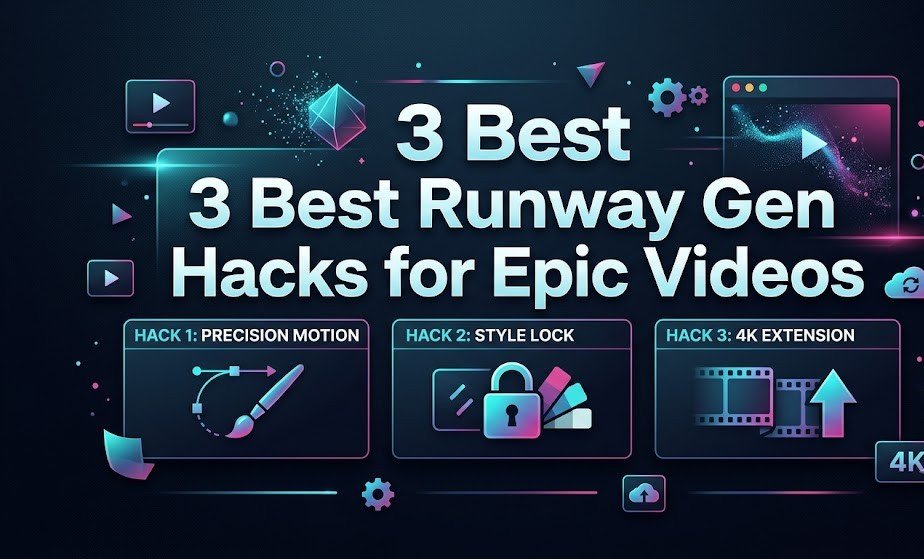
Creating studio-grade AI video no longer requires trial-and-error prompting or endless credit waste. By integrating the 3 Best Runway Gen Hacks for Epic Videos—multi-layer motion painting, style-locked keyframe conditioning, and keyframe extension with 4K upscaling—you can reliably produce smooth, consistent, and visually striking cinematic videos for any project.